
![[Tutorial] How to shop on Bricklink with several people + bonus](https://blogger.googleusercontent.com/img/b/R29vZ2xl/AVvXsEgyJcGEwapSjAxSHS9LV0kVTGm7pnWPet8NNA5cC-ABWwI8KHwimZNYbAFAd-zZk_8y6w8a5tq49Vqyi_COcCxbqBVEw9NHbmm934eSH9p3FWf213p-TuonKwWd4PfoxrFSQWwTkYR9zg1t94ITg_9rQ6PfxMrZq8cbZAvjeE-hUdzTlHgrQhnCFUTqfotb/s328/LEGO-Cart-Instruction.jpg)
Buying LEGO bricks on Bricklink, especially from another country, often involves quite high shipping costs. This is especially irritating when you only want to buy a few pieces and the shipping cost is several times higher than the bricks themselves. The .cart files and shopping with friends come in handy here. The shipping cost is then spread over several people and is no longer so painful.
Table of Contents:
→ What is a .cart file?
→ Buyer Instructions
→ Instructions for the main buyer
→ Additional information
→ Bonus - How to Build a Cart
What is a .cart file?
I assume you know what Bricklink is. Just in case, I'll mention it - it's the largest, international platform for buying and selling individual LEGO bricks. There are a lot stores there - I especially recommend this one :)
A .cart file is a file with the saved contents of a Bricklink shopping cart. It allows you to send your shopping cart to another person in just a few clicks.
Instructions for Buyers
This is an instruction for anyone who wants to add their bricks to someone else's order. You'll need to create your own .cart file.

1. We add the bricks to the cart as usual.

2. Click on the cart icon in the upper right corner of Bricklink or go directly to this link - bricklink.com/v2/globalcart.page
3. Click the "View all Carts" button.
4. Select the store where you want to buy the bricks.
5. Click "Export"

6. Click the "Export" button.
7. Save the file and send it to the person making the group order... and it's done!
Instructions for the main buyer
This is an instruction for the person placing an order on Bricklink and receiving .cart files from other people.

1. Click on the cart icon in the upper right corner of Bricklink or go directly to this link - bricklink.com/v2/globalcart.page
2. Click the "View all Carts" button.
3. Click the "Import" button.
4. Select the .cart file. You can drag it onto the gray box or select it from your disk using "Browse for file."

5. After selecting the file, click the "Import cart" button.
6. And that's it! A new shopping cart has appeared in your chosen store. You can click on the store name, order the bricks and then follow the same steps for the next person.
Additional information
The most convenient way to do everything is on a computer. You can, of course, do it on your phone, but Bricklink is a specific website that I find much faster to use on a computer.
When sending the .cart file to the buyer it's good practice to also paste the order information from the cart e.g. 55 items / 11 lots—and the total price. Just to confirm that everything is correct.
It's best to order each person's bricks separately. Meaning you order each .cart file separately. Most stores allow open orders, meaning you can add additional bricks to your order over several days. This way, you can keep track of which bricks belong to whom after receiving your shipment. At the very bottom of the order details page, you'll find the "Group by Batch" option. Clicking it will divide the list of ordered bricks into individual batches/persons.
It's important to remember that if you want to place an order with multiple batches, you can't choose any immediate payment option, such as PayPal (Onsite). Because once you pay for the order you won't be able to add anything else.
Currently, probably the most popular platform for communication between AFOLs is Discord. We usually send .cart files there. On Discord for Windows, the classic copy/paste (ctrl-c/ctrl-v) works. In the file explorer, you can ctrl-c the file and then ctrl-v it in the Discord window, and the file is ready to be sent.
On Discord (Windows/Apple), dragging files with the mouse also works. You grab the file and drop it in the window in a private message or in a channel.
On Discord on your phone, you can also easily attach a file downloaded from Bricklink to a message with a single tap. It will immediately appear in the file sending menu when composing a message.
Don't have anyone to order bricks with? Make a post on any AFOL Facebook group, forum board or Discord that you are looking someone from specific area for a Bricklink order. You will probably find someone. The world is truly small (and full of AFOLs :D).
The shipping cost can be divided in three ways - equally, as a percentage of the price of the bricks for a given person, or as a percentage of the weight of the bricks.
Bonus - How to Build a Cart
And here is a little bonus! Instructions for the shopping cart I built for the photo in this article. Happy building!
Instructions have been moved:
→ LEGO cart - instructions
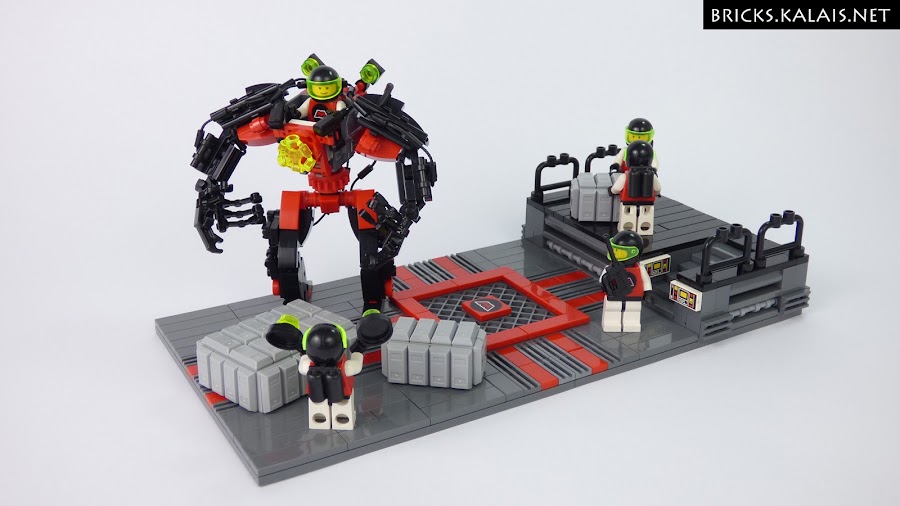
P.S. And this is what packing your orders looks like somewhere far away on planet M:Tron ;)
Check out other posts!
![[MOC] LEGO 70409 MOD: Pirates meets Steam Punk](https://4.bp.blogspot.com/-AcxL81pXNgE/Ve3PCh4mf3I/AAAAAAAAH1M/X_1Q8lektMw/s1600/LEGO-70409-mod-steam-punk-mech-01.jpg)
MOC | 07.09.2015
Today I would like to show you very small speed-building construction. It is a bit ridiculous MOC. It is a mod (modific...
![[MOC] Blacktron X-MAS tree](https://1.bp.blogspot.com/-4a_ZJWBx_gQ/Wiww72MIbOI/AAAAAAAAKA8/lo3baahQ8X0RFy78b_WsSuFEO-o_CevWACLcBGAs/s1600/Blacktron2-xmas-tree.jpg)
MOC | 09.12.2017
My every year tradition of building Xmas tree in one of the official LEGO themes continues ! This year it is time for Bl...
![[MOC] Orc's Windmill](https://blogger.googleusercontent.com/img/b/R29vZ2xl/AVvXsEhg3bhUNEBJ3MpiIwr6-GL-mNsI-BNaBVYIeAE4y6QYjfTqNyejfE7baYEGJQD3r_XpqdbolZsbDSGIfOd8NF9eCft_qWjYcpCzJyaPPvdj4QFUAqutaYPSkqTYUdgJUyFNNMbnxi7CWlD36ENE1l0pfh694Olw61sRenrHC2617d1o0wvUPajJ9KXGZpeZ/s1600/LEGO-MOC-Orc-windmill-00.jpg)
MOC | 11.02.2025
This time not much text to read because I missed the voting date for projects. This is the Orc Windmill. It can become a...

Tutorial - How to shop on Bricklink with several people + bonus